
DOCUMENT PRINTING GUIDE · IRELAND
How to Print Documents Online
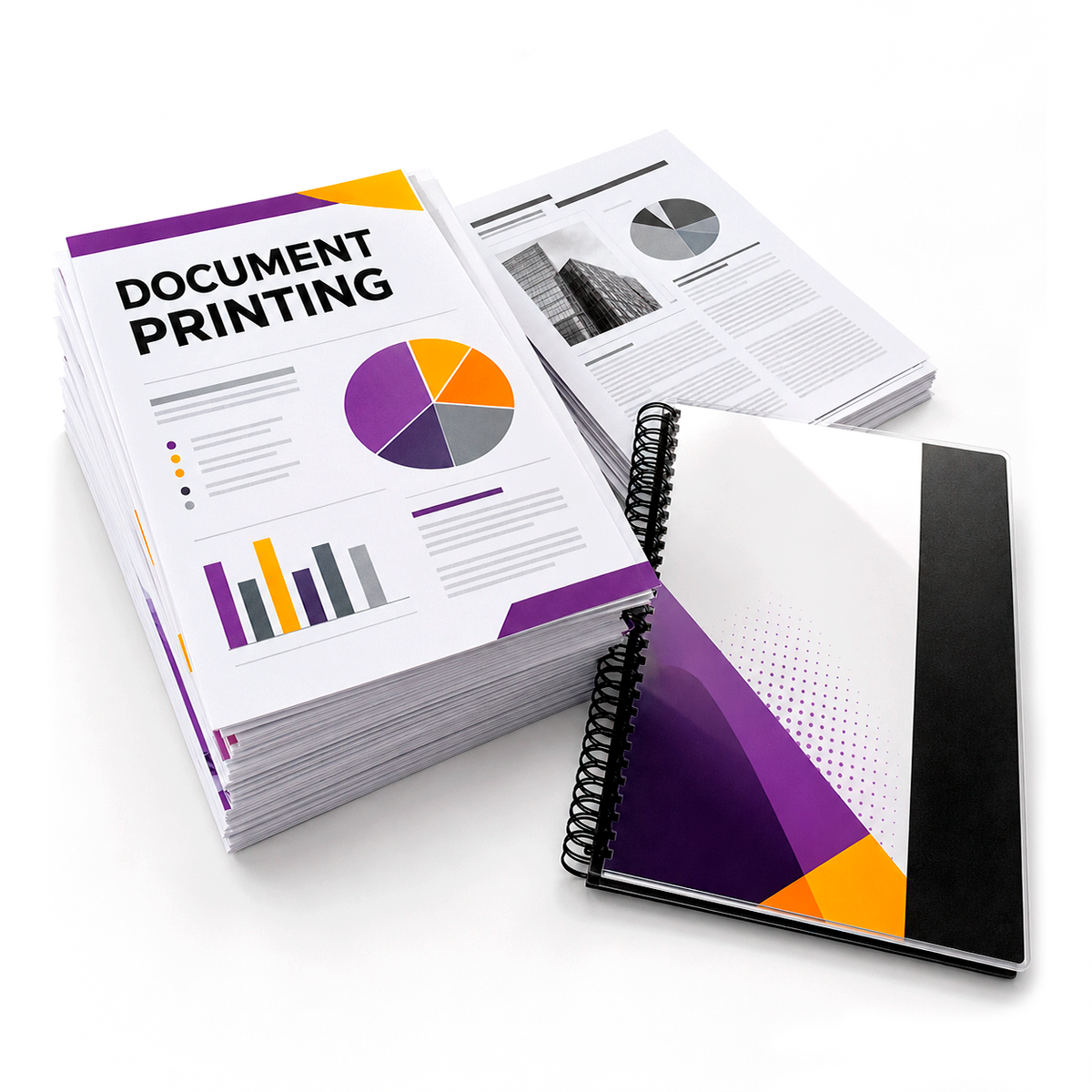
Printing documents online lets you upload a finished file, choose your print settings and place an order without first bringing the file to a shop. The process is straightforward, but checking the document before upload is essential because the printed result follows the file and options you submit.
To place an order, go to our Document Printing page.
1. Prepare the final version of your document
Finish all editing before you upload the file. Check spelling, page order, headings, page numbers, images and blank pages. Open the final file from beginning to end rather than relying only on the editable source document.
2. Save the document as a PDF
PDF is normally the safest format for online document printing because it preserves page size, fonts and layout. Documents created in Word, PowerPoint, Excel or Google Docs should usually be exported as PDF before upload.
- Confirm the correct page size.
- Make sure all fonts display correctly.
- Check that images are clear.
- Remove comments and hidden pages.
- Use a clear filename.
3. Choose colour or black-and-white
Black-and-white is suitable for text-heavy documents, forms, scripts and internal reports. Colour is better for photographs, charts, certificates, branded documents and presentations where colour carries meaning.
4. Choose single- or double-sided printing
Single-sided printing places one document page on each sheet. Double-sided printing places pages on both sides and reduces the number of sheets. Review blank pages carefully, because they can affect the front-and-back sequence.
5. Select finishing options
For reports, manuals and course materials, wire binding can keep pages in order and allow the document to open flat. Make sure the document is final before choosing binding, because changes after production may require reprinting.
6. Upload and review your order
Upload the correct file on the Document Printing page, choose the required settings and review the order summary before adding it to the cart. When uploading several documents, give each file a clear name.
Print your documents online
Upload your finished file and choose the printing options required for your order.
Frequently asked questions
Can I print a Word document online?
Export it as a PDF first and check the PDF before uploading.
Can I upload more than one file?
Use clear filenames and make sure the settings selected for the order match the files being uploaded.
Can I print double-sided?
Choose double-sided printing where that option is available on the product page.
More document printing guides
Document Printing Guide · Best File Format · Colour vs Black & White · Choosing Paper · Wire Binding
UPLOAD. CHOOSE. PRINT.